DownLoad and Execute Remote DeskTop
- When you click on the “DownLoad DOEJAEHelp Button” at the bottom of these instructions,
a pop up prompt similar to the one below would open up. It may have both a run and save button depending on the Internet browser being used.
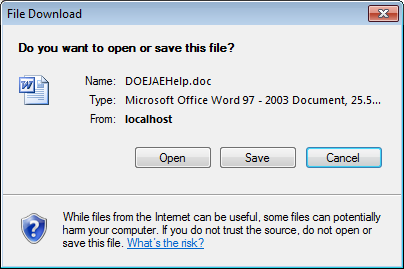
- Click on the save button. A "Save as" window will appear.
- From the "save as" window, select the desktop folder (to save to the desktop) and then click on the "save" button to save the "Doejae Help 2" icon
- Go to the desktop of your PC and double click on the “Doejae Help2” icon

- Select the option "Run". Reply "Yes" if a certificate prompt is displayed. The Remote Helpdesk prompt would appear and you
- Click on "Start" button to begin the session.
Operating systems and Internet browsers may cause the prompt message to appear different from shown above however the principle is the same for executing the icon.